
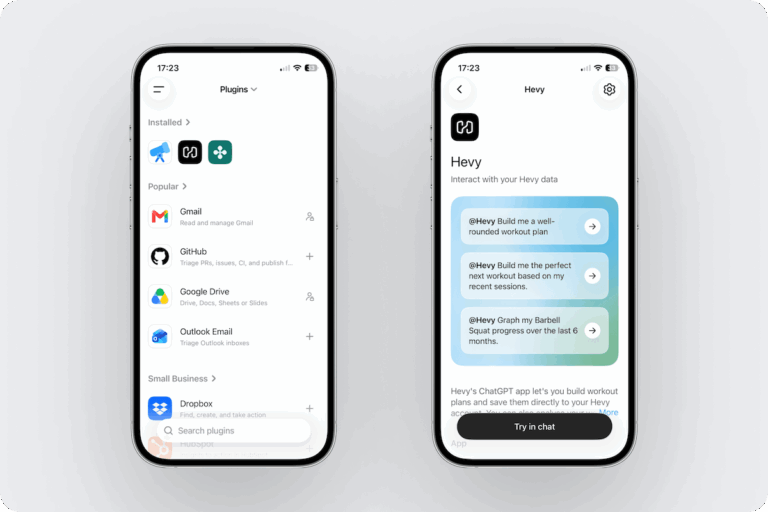
Hevy’s MCP lets you connect your Hevy account to ChatGPT and Claude to read your training history and create or update routines. You can disconnect your Hevy account at any time. No technical knowledge needed.
Assistant | Status | How to connect |
ChatGPT | Available | |
Claude | Available | |
Gemini, Grok & Muse | Available | Connect through our MCP* |
*Learn how to manually connect your preferred AI assistant to Hevy through our MCP.
To disconnect, remove the connection from ChatGPT’s settings.
Building your own tool with Hevy data? Use the Hevy public API instead. See the API docs.
You can also check out our MCP documentation. It explains how you can use our MCP to connect your Hevy account to your preferred LLM, even if we don’t have an official integration yet.
Once you connect your account, your assistant can:
Hevy doesn’t control the answers you get from AI. They depend on the length and detail of your prompt. Hevy only supports the integration and passes the result to your profile. Always check the end result and use your best judgment before following any workout guidance.
Use case | Prompt |
Starting out | I’m new to lifting and can train 3 days a week with a basic gym. Build me a routine and save it to Hevy. |
Training at home | I only have adjustable dumbbells, a bench, and a pull-up bar. Build me a push/pull/legs plan. |
Breaking a plateau | Look at my last 6 months of bench press and tell me where I stalled and what to change. |
Planning the next session | Based on my last 5 workouts, what should I do tomorrow, and with what weights? |
Coming back after a break | I haven’t trained in 8 weeks. Look at what I was lifting and ease me back in. |
Balancing your training | Am I training back as much as chest? Suggest changes to my split. |
Here are a few things to always keep in mind:
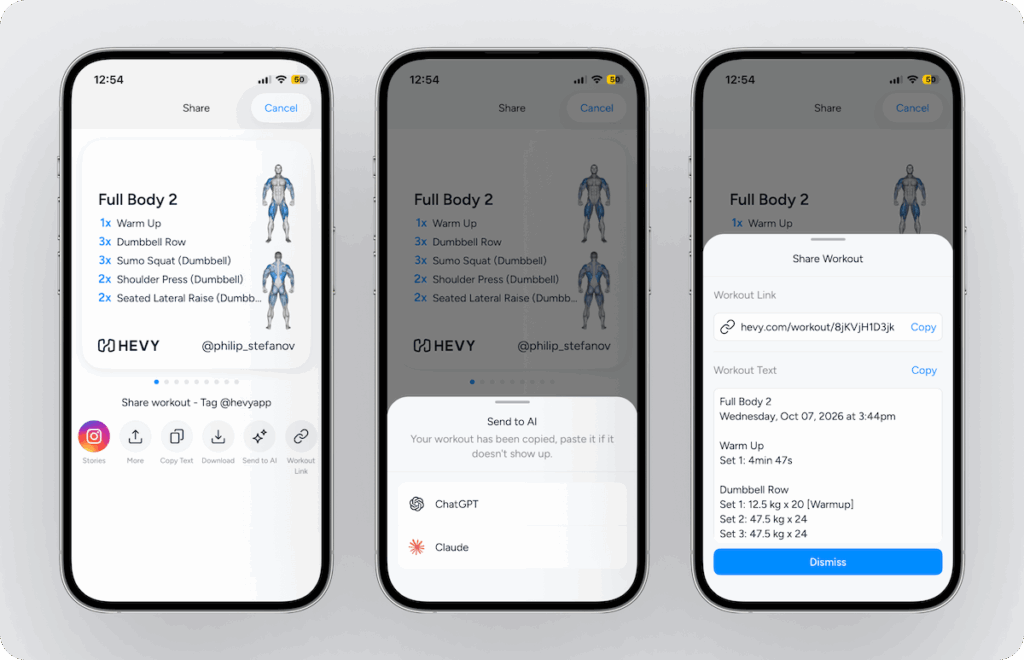
If you don’t want to use a full AI integration and instead prefer to only share some workout data, you also have:
You can also use the Hevy public API. This option is for developers who want to build their own tools with their Hevy data. See the API docs.
MCP stands for Model Context Protocol, an agreed way for AI assistants and apps to talk to each other. Instead of building a different connection for every assistant, Hevy built one that follows the standard. It runs behind the scenes and powers the official integrations.
No. Connect Hevy to your preferred AI tool, give it access, and start chatting.
The Hevy plugin for ChatGPT and Hevy connector for Claude work with free Hevy and free ChatGPT/Claude accounts.
The plugin or connector is what you see and use inside your assistant. MCP is the connection behind it.
MCP currently powers our ChatGPT and Claude integrations. If you’re a developer who wants to build with your Hevy data, the public API is the best place to start. Our MCP documentation also explains how to link your Hevy account to other LLMs.
To provide the best experiences, we use technologies like first-party and third-party cookies to store and/or access device information. Consenting to these technologies will allow us to process data such as browsing behavior or unique IDs on this site. Not consenting or withdrawing consent, may adversely affect certain features and functions. We do not use cookies to display personalized advertising or to build advertising profiles about you. Cookies categorized below as "Advertisement" relate to embedded third-party content (such as videos or social media posts) and are not used by us for targeted advertising or automated profiling. We do not carry out automated decision-making, including profiling, that produces legal or similarly significant effects concerning you.